Posts

Showing posts with the label teachers

Sora for reading!

Image
Sora is ready for you and your students!  This option is available to create an experience similar to going to the library. And there are some great titles in there!  I just might have to carve out some time for enjoyment reading myself! The expectation from Helen We encourage each student to have one book checked out at all times for independent reading (just like when our site libraries are physically open). Please add a student expectation to your asynchronous plans that includes regular use of the SORAS Reading App/website for Students. It works well as a support for both Daily Five and Accelerated Reader Programs. Video support from Overdrive This link with show you a few videos to show you how Sora works      -    Sora How-To Videos (2-6 min each) A 30 min webinar recording to watch any time      -    Getting Started With Sora   Read about some features that you can use to support instruction (like annotations, vo...

Find your HESD Employee ID

Image
Did you know... If you know how to sign into Q with a number and password, then you know your employee number.  The number you use there-- the user ID-- that's the one! You also need your Employee ID to sign into Savvas Realize program. How to find your Employee ID in Q For some people, it is 3 digits, for others, it may be longer.  But no matter how long or short it is, you can find it by signing into Q.   Here is an easy way.   Next time you are adding your Class Engagement notes , check out your name at the top.  See the number in parenthesis?  There it is!  Your employee ID. Try it out! Q Did you find it?  See if you can log into Q by entering the number instead of your name (don't do both, it won't work) then your password. Savvas Realize Now, if you are a TK-5 classroom teacher, try signing into Savvas Realize.  Here is the link from a school webpage to make it easy.  Just add HESD to the front of your number and you ...

Co-Teachers in Khan Academy

Image
We have gotten some questions about shared classes in Khan Academy, and I agree that it would be so helpful to be able to have your partner teacher see student progress in Khan! But they only allow one teacher per class.   What? Yes, I put in a feature request for multiple teachers on a class, and I'm sure I'm not the only one. Roy Says... Here are some options from Roy, the Khan Academy hero who did the training sessions before school "For co-teachers, we'd recommend one of two strategies, since Khan Academy can only assign one teacher per class. Option 1 The co-teacher (i.e. the teacher who's not listed first as the teacher of record) can manually create a new class and then add the students into that new class, similar to how teachers created and rostered classes before we had the district synced classes Option 2 The teacher of record can go into their Khan Academy settings, and change their password to one that they feel comfortable sharing with the co-teache...

STAR and AR

Image
Hi all! This is the email from Melanie (sent Friday 9.11 @11:15, if you are a gmail search user) I am removing specific password info because this is a public space, but check your collaborative google classroom if you can't find the email. Liz --------------  Hi Everyone,  Just wanted to give you a short guide on using Renaissance Place and giving STAR reading tests.  This year there have been changes in the layout of Renaissance Place. It looks different but it seems to be more intuitive and faster. Take a little time to look around and find what you are used to seeing.  Reports are still under each product's icon. All classes have been assigned AR and STAR reading, and I add STAR reading Spanish by request (put in a ticket if you need this.)  To get into Renaissance Place First make sure to use the link from your school webpages , or students can use the shortcut in clever . Other links googled from the web will not work .  Teachers  username: ...

Khan Academy Resources

Image
Access to Khan Academy is such an exciting opportunity for our students!  We will surely have more to talk about once students start using it.  One of my favorite things about Khan is the clear video coaching for instruction before questions, but also for "oops, you missed that one, watch this to see if you can figure it out next time" Need a refresher from Roy's training last month? Here are his slides ( Google Slides ) or look at the bottom and flip through. For example, slide 25 shows how to assign a course mastery goal for your students. For 3rd-8th graders This is a required asynchronous math task daily and our students math aptitude with reflect their efforts! If you need a reminder about how to sign into your account whether you already have an account or not, this doc shows the steps.  (It is the same one you will find on the padlet shared in training. I linked the padlet at the bottom of this post.) For 2nd graders It is not required for 2nd grade, but it is an ...

TK-2 First time Signing into Seesaw

Image
Hello to my favorite TK-2nd  grade teachers in the whole world!  Some of you are seasoned pros, and some of you are new to the grade level.  Welcome to all of you! In this post, I want to remind you how your students will access Seesaw on their iPads.  I want to tell you-- - even our 4 year olds can do this. You might have to go slowly, but please. Empower them. Coach them. Help them and their families learn how to do this.  It is the whole "teach them to fish" thing, you know what I mean? Your class will automatically be built through Clever. For some it has been, for some, automation is being. a stinker. There are a few potential reasons, and none of them are personal.  We want your class to be ready for you. Thank you for your patience and for letting your families know we appreciate their patience, too. Steps for students 1. You will have your students go to Clever on their iPad 2. The will sign in with Clever (their 300#) OR with their Google account ...

Post a DAILY/WEEKLY learning schedule-- here is one idea

Image
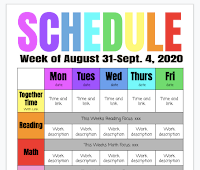
One benefit of our TK-2 Seesaw and 3rd-8th Google Classroom focus is that it is considerate to our families, giving them one clear place to see expectations.  All work should start in your designated platform.   Daily/Weekly schedule There are many ideas out there, here is one. And, Google Slides makes it SUPER easy to update each day or week.  Here is a template for a schedule (inspired by Tait Rains, check out the Engaging Organization Collab-a-rama TST on Mission Control) I am not sure how this idea would look in Seesaw...yet... but if you use a Google Doc or Google Slides for your agenda then add it to your Google Classroom, you will be able to update the file and the update will show for students. So, I would have one Slide deck that is published and another slide deck that is a draft with my working ideas.  Then, I just copy the day/week into the published Slide deck when I'm ready for students to see it. Is that confusing?  Maybe... I know that som...

Clever News August 2020

Image
Clever-- some of you are Clever pros and some are just experiencing the glory of Clever for the first time. Let me offer some information to help. FIRST--- I want to let you know that when a system is updating and automating, it is sometimes not accessible to the user. THIS MEANS that you might try to access Clever right now to see what I'm talking about and it won't work, or tell you that you can't sign in or something.  Please give our resident ninja Mel and Clever some time and try over the weekend before putting in a tech ticket because something doesn't work. But I do want to share some details that might help. What is Clever? Clever is a Single Sign on service that allows students to sign through once, then it passes them through to another program already signed in.  These services are in a category called Instant Login.  We are also able to add shortcuts (in the Shortcut category) that are just bookmarks, but probably won't sign the student into the link. Cl...

Seesaw Automation and Archiving Classes August 2020

Image
If you are a teacher who used Seesaw in the spring of 2020, how much did you learn to love Seesaw?  If you hadn't used it before, you surely saw it's value in distance learning times!  A few details to share, and this seemed like the easiest way.  I hope this helps. You can leave comments in this blog post if you have questions, then I can answer, or someone else who has an idea can, and it's good for everyone. Please do sign in with Google if you comment so I can help you) Last year's classes in Seesaw Those will all need to be archived.   IF YOU CREATED THE CLASS, you do that your self.  This Help Desk post explains how in easy steps. IF THE CLASS WAS CREATED IN CLEVER, we archive that through the admin console, and it will happen today (Th 8.20.20) TK-2nd grade classes Your classes will be built through automation in Clever. You should see them by Monday morning.   I will be creating a one pager for how to access Seesaw (update--it was emailed...

Start with Seesaw TSTs

Image
 Hi there!  I always love sharing Seesaw, especially with our Preschool-2nd grade teachers!  It is such an age appropriate place for student learning, it is one you will use well this fall and beyond, even when we are back to face to face instruction one day in the future. Although I am not able to process and post videos right away, I hope the Google Slides of the TST presentations are helpful to you.   Mission Control (go to the Blast Off page of the site) is always ready for you with videos from the spring.  Recordings of my sessions, sure, but the good stuff is in the collab-o-ramas where you can hear how teachers use tools in the classroom.  The slides and videos are on the Mission Control page Last week we had two sessions. The first was designed for people brand new to Seesaw to understand how it works in general, and the second session, we looked closely at how Activities are a nice way to manage student tasks and work. Session 1 ( Google Slid...

Flipgrid TST

Image
Here we are!  The last TST of the summer season, and it's a fun one!  Flipgrid is such a great way to engage students in a fun way and get them talking.  Start with some "low cognitive load" tasks to play with the tools.  Prompts like "what is the best vegetable" a "would you rather" will get them playing.  As they learn the tools, give an academic prompt.  Flipgrid is great for vocabulary practice or other ELD skills, reading reflection, content questions that have open ended answers. Here are the slides for our TST today. ( Google Slides ) Want to try it out?  Use this link to our trial Flipgrid-- it's the one that I emailed participants. Open link by clicking here  or on an iPad, use join code 1bda5eec in the app. Sign in with your Google Account and give it a try!  I dare you! (Hueneme teachers only)

Screencastify TST

Image
Screen recording is such a helpful tool for your asynchronous learning time.  Make videos to show instructions and routines, to talk through weekly lessons, of use the webcam to make your morning message video.  Screencastify is also a fantastic tool to start building a library of mini-lessons.  Imagine reviewing student writing, and you know a student could benefit from a "strong verb" reminder, and you have just the 3 minute video!  Head to your Google Drive Screencastify and get the share link for that video.  Put the link in the comments on their Doc and in 30 seconds of work, you have given meaningful feedback that will have an impact on the student!  Need more idea?  Here ( Google Doc ) are 50 of them!  As a Hueneme teacher, you have Unlimited Screencastify access for the 2020-21 schools year.  Enjoy! Here ( Google Slides ) is the slide deck from the August TST.  Or flip through them below. UPDATE---  *** After you are signed ...

Zoom and Meet-- a friendly showdown TST

Image
Howdy!  It seemed like such a cool idea to have a quick comparison of Google Meet and Zoom, and then I realized it is a lot to get my head around! There are so many possibilities and I don't have all the answers.  But I know, between us, we probably have plenty of good ideas and experiences.  So, here are the slides as a starting point. Feel free to leave your tips and other things that have been working for you in the comments below. Top image from Pixabay Slides template from Slidesmania.com Gifs in presentation from giphy